


The Briefcase #58 : Excel Features Everyone Forgets Exist
Written by: AccountingCPD | Published: 4th Sep 2026 | Updated: 4th Sep 2026
Excel has been around since 1985, which means it has had more than 40 years to accumulate buttons. Some of those buttons have become part of everyday life. Everyone knows how to sort a column, add a filter or make a cell turn a vivid red to deter predators.
But like your wardrobe, you probably only use 20% of it. A lot of these buttons are gathering dust, waiting patiently for you to accidentally click them before cursing to yourself.
So, this week, we’re shining a light on those unsung heroes – buttons that can change the way you work, provided you don’t immediately forget they exist after reading this.
🔍 Go To Special
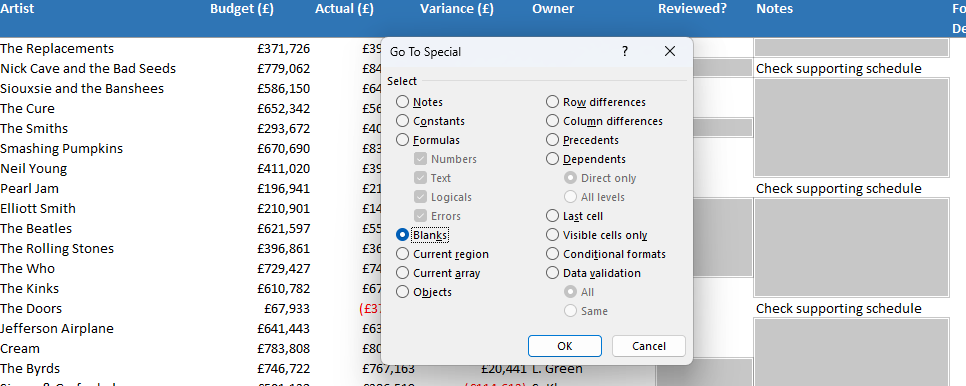
Go To Special might be your regular order at the local Chinese take-away, but it’s also one of the quickest ways to interrogate a large spreadsheet.
Rather than hunting through thousands of cells yourself, Go To Special lets you select particular types of cells in one go. You can find blanks, constants, formulas, errors, comments, visible cells, and various other categories, which can be extremely handy.
Imagine you’ve inherited a large financial model and want to find numbers that have been hard-coded rather than calculated, or you’re cleaning an imported dataset and need to identify blank cells. Instead of scrolling through it until your eyes begin to merge with the gridlines, Go To Special can do much of the hunting for you.
You’ll find it under Home > Find & Select > Go To Special. You can also press F5 or Ctrl+G and select Special. Go on, we dare you.
👀 Watch Window
Every accountant has experienced the joy of changing something on one worksheet, and travelling seventeen tabs across a workbook to check whether the number they care about has changed.
Watch Window might sound like it’s the pane of glass that’s protecting that device on your wrist, but it’s actually a way of cutting down the tab-flickering.
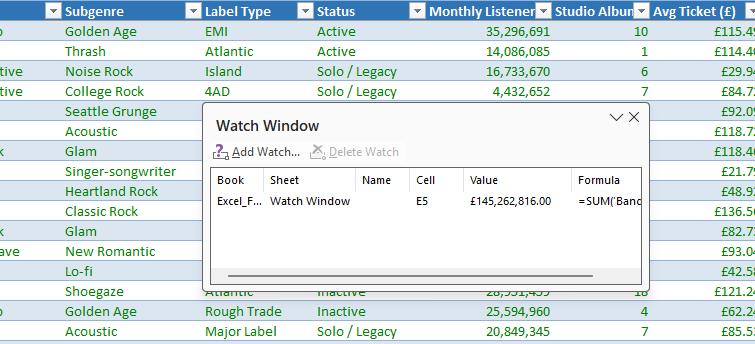
You’ll find Watch Window under Formulas > Watch Window. Select the cell you want to monitor, click Add Watch, and Excel will keep its value visible while you work elsewhere in the workbook. Excel displays their value – along with information such as the workbook, worksheet and cell reference – in a separate window.
That makes it particularly useful when you’re working with financial models, budgets or reconciliations where changing one assumption can affect an important result somewhere completely different. Add the important cell to Watch Window and you can keep an eye on it while you work.
Think of it as CCTV for cells. You might not think the cells are likely to steal anything, but if you’ve ever spent an afternoon trying to work out where £27,436 disappeared to, you might disagree.
📷 Camera
Yes, Excel has a camera. No, it isn’t for taking a photograph of yourself looking delighted with the quarterly management accounts.
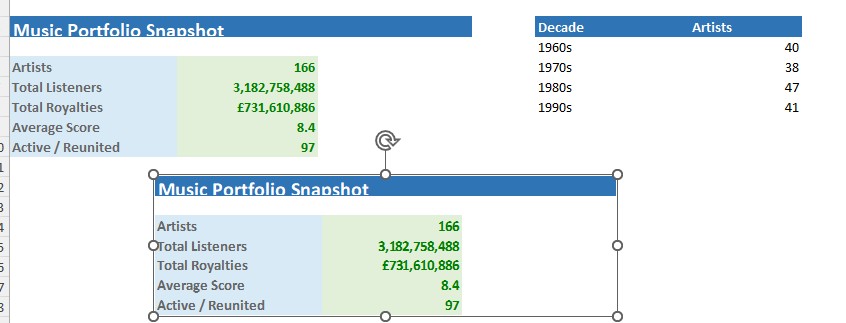
The Camera tool lets you take a snapshot of a range of cells and place that snapshot elsewhere in the workbook. The clever part is that the image remains linked to the original cells, so when the underlying data changes, the picture changes, too.
That can be useful when building dashboards or management reports where you want to bring together information from different parts of a workbook without recreating it.
You probably won’t see Camera on the Ribbon. To add it, open Quick Access Toolbar > More Commands, choose All Commands, find Camera and click Add. Then select some cells and click the new Camera button. Once you know it’s there, though, it’s a quirky little feature that often comes in use.
🚧 Data Validation
Data Validation helps stop other people ruining all your hard work.
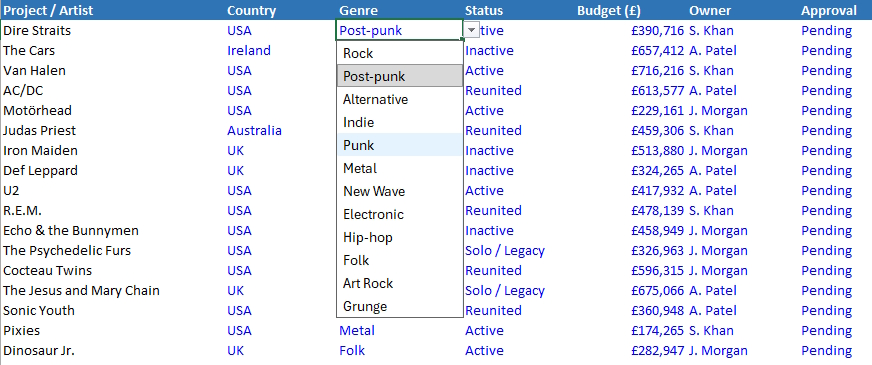
It lets you control what can be entered into a cell. You might restrict an entry to a whole number, a particular date range or a value from a dropdown list. You can also provide instructions and display an error message when someone tries to enter something they shouldn’t.
For finance teams distributing templates around an organisation, this can save an enormous amount of cleaning up later. If a budget template asks someone to select a department, for example, a dropdown list prevents you receiving:
Marketing
MARKETING
Mktg
marketing dept
Marketing!!!
and subsequently discovering that Excel considers these to be five entirely separate parts of the business.
You’ll find Data Validation under the Data tab. It won’t entirely stop people treating your spreadsheet the way Steven Seagal treats hired goons, but you can at least make them work harder for it.
🕵️ Inspect Workbook
You’ve finished the spreadsheet, you’ve checked the numbers, and you’re about to send it to a client, auditor or submit it to be inducted into the Excel Hall of Fame. There’s a celebratory biscuit with your name on it, as soon as you hit Send. One last check, through, and you discover that the workbook contains three hidden worksheets, some sweary comments, and a tab called “will do tomorrow”.
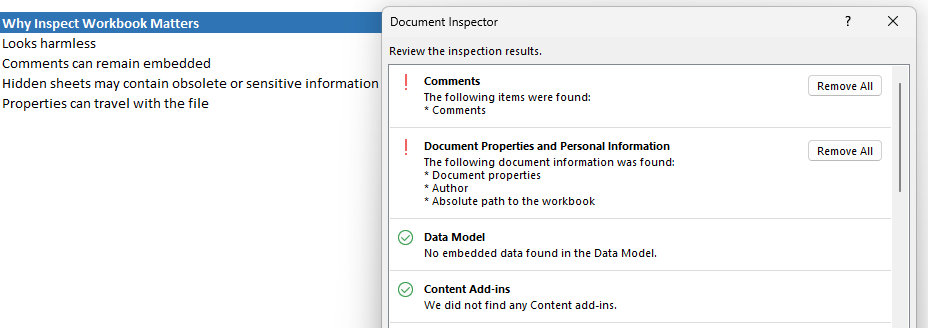
Fortunately, Excel has a feature designed for precisely this sort of situation. Document Inspector can check a workbook for information you may not realise is still lurking inside it, including hidden worksheets, comments, document properties, and other potentially unwanted content.
That’s particularly useful when a workbook is about to leave your organisation. Before sharing an important workbook externally, running an inspection can be a very sensible precaution – particularly if one of your hilarious coworkers has had access to it.
You’ll generally find it through File > Info > Check for Issues > Inspect Document.
🔊 Speak Cells
In case you didn’t know, Excel can read your spreadsheet aloud. The Speak Cells commands use text-to-speech to read the contents of selected cells. Like the Camera tool, you may need to add Speak Cells to your Quick Access Toolbar before you can use it.
Many people who need this function will have obviously heard of it, but if you’re not in need of it, it can still be useful. If you’re comparing figures in Excel against another report, invoice or document, having Excel read the numbers aloud leaves your eyes free to follow the other source. It can also help when checking long sequences of data where constantly looking backwards and forwards becomes surprisingly error-prone.
Obviously, there are limits. If your spreadsheet contains 80,000 transactions, asking Excel to read the entire thing aloud is probably less a productivity technique and more the world’s most boring audiobook.
🧠 Final thoughts
Excel’s decades of accumulated features means it’s perfectly possible to use it every working day without knowing even 1% of what’s hiding inside it. It’s like that movie Lucy – imagine what you could do if you could harness all of Excel’s power.
Sadly for us, none of the features we’ve written about are going to revolutionise accounting. They might, however, save five minutes here, half an hour there, or prevent you spending a sweltering Friday afternoon manually doing something Excel has been able to automate since before you were a glint in your daddy’s eye.
So, the next time you find yourself typing “ahhhhhhhhhHHHHHHH” into an empty cell, see if there’s some quick fix hiding in the Ribbons. There probably won’t be, but imagine if there is!
Want to get better at Excel?
Explore our Excel courses for accountants and finance professionals, covering practical tools and techniques you can use in your day-to-day work.
Explore Excel coursesReady to power up your CPD?


Updated 4th Sep 2026 | 7 min read